Sync and conflicts
What syncs
Coffer syncs all vault files up to the size limit: 500 MB on desktop and 200 MB on mobile by default. Larger files stay on their device, and Coffer lists them as problems.
Coffer also syncs the settings folder: settings, themes, and plugins, without the workspace layout. You can turn that off under Settings → Coffer → What to sync. Files and folders whose names start with a dot do not sync, except the settings folder. Neither do the patterns under Leave out.
When it syncs
Coffer syncs at startup, a few seconds after a change, on a regular schedule, and more often when another device syncs. On mobile, it sends changes before the operating system stops the app. You can change these times in settings.
Coffer is not real time. Two people who type in the same note at the same time see each other's changes after the next sync.
Changes from two devices
Coffer does a three-way merge: it compares each device's version with the last version both devices agreed on.
- Notes: line by line and word by word, and properties key by key. Lines that two devices add at the same place are both kept.
- Canvases: node by node. Bases: line by line. Settings files: key by key.
- Moves: if one device moves a note and another device changes it, Coffer puts the change at the new place.
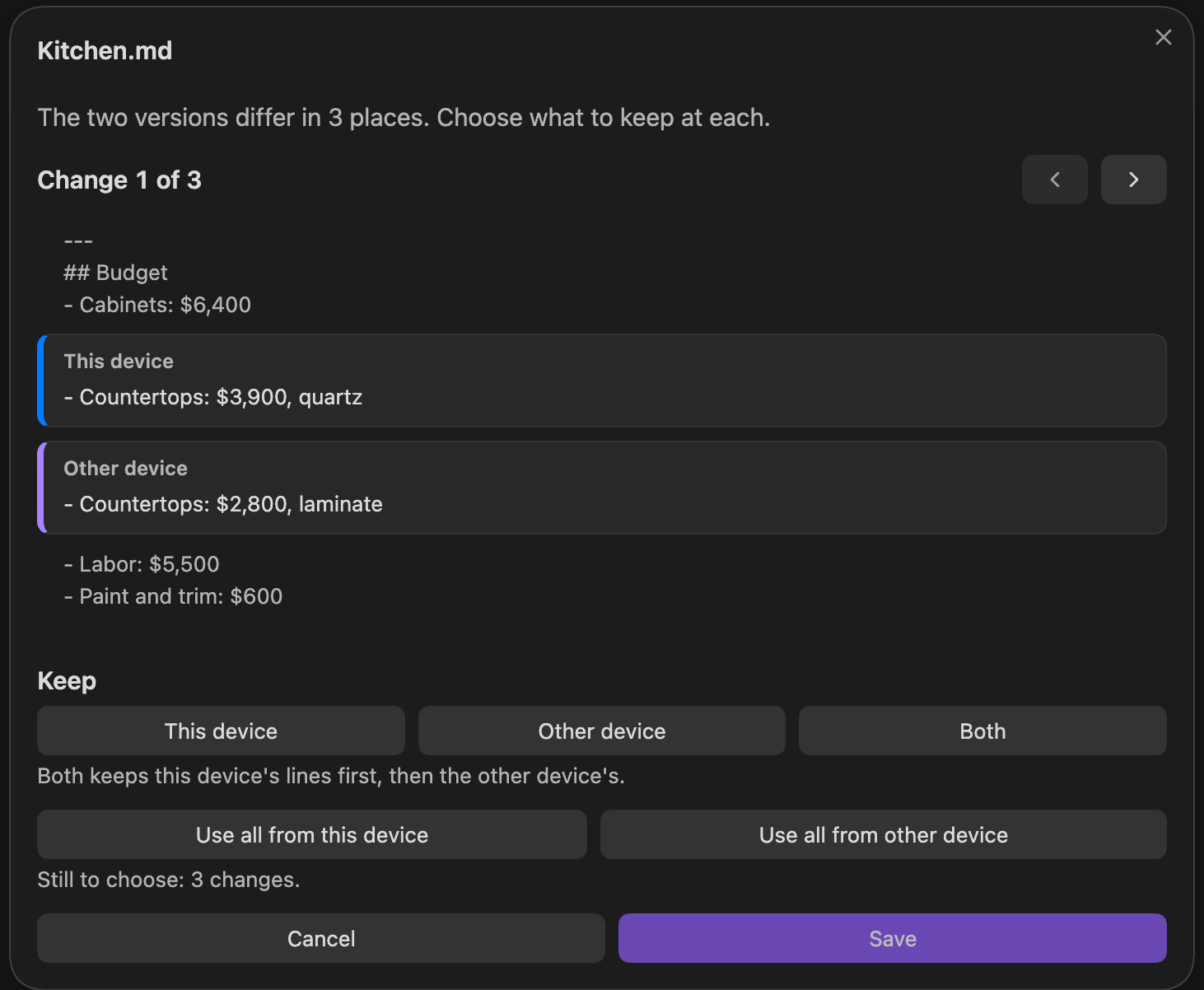
- When a merge is not possible: Coffer keeps both versions. The second one gets "(conflict …)" in its name. Coffer does not overwrite a change from another device.
To resolve a conflict, run Resolve a file changed on two devices. For each change, keep the lines from this device, the other device, or both.
Files on demand
Under Settings → Coffer → What to sync, turn on Download only when asked to keep large files only in storage. Run Download a file left in storage to download and open one.
Read-only devices
Turn on Only receive changes at setup, or under Settings → Coffer → Storage and passphrase. Changes on that device stay there. If you delete a file on it, Coffer downloads it again.
Safety checks
- A sync that would delete more than 10 files and half of the vault stops and asks first. Run Sync now, allowing large deletions in the vault to go on.
- Run Check synced data for damage to test what storage holds.
Next: History and restore.